SwitchBot AI Hub: Built-in Frigate and what it actually changes for your Smart Home
As an Amazon Associate, Smart Home Labo earns from qualifying purchases. This site contains affiliate links.
🛏️ The Morning at the Ryokan
Section titled “🛏️ The Morning at the Ryokan”Picture this. You are at a ryokan, finally getting some rest. You wake up, stretch, reach for your phone — and see a notification from your home camera. Motion detected. In the living room. At 2am.
Your half-asleep brain does a quick calculation. You are not home. Someone else might be.
You open the app. You scrub through the recording. It was a car passing on the street outside, its headlights briefly sweeping through the window and changing the light in the room. You scroll through the rest: seven more notifications. Same story. Oh, and one from 20:00 featuring your robot vacuum cheerfully doing its rounds. 🤖
You put the phone down. You decide you will stop checking notifications.
This is not a hardware problem — it is a software problem. Your camera saw change. It had no idea what caused it. And once you stop trusting your notifications, the whole point of having cameras starts to fall apart.
The fix is AI object detection: cameras that understand what is actually in the frame, not just that pixels moved. This article is about how to get there, and where the SwitchBot AI Hub fits in that picture.
🎓 Part 1: Understanding the Technology
Section titled “🎓 Part 1: Understanding the Technology”📹 What is an NVR?
Section titled “📹 What is an NVR?”NVR stands for Network Video Recorder. Your cameras stream video over your home network; the NVR receives those streams, records them to storage, and gives you an interface to review footage and manage your cameras. Think of it as the brain and hard drive behind your camera setup.
Most consumer camera solutions in Japan today use a cloud NVR. Amazon Ring , widely sold on Amazon Japan and a familiar sight at electronics retailers, is a good example: footage goes to their servers, access requires a monthly subscription, and the costs add up over the years.
A local NVR keeps everything at home. No monthly fee for storage. No footage leaving your network. And it keeps working even if the company behind your camera changes its pricing or disappears entirely.
🦅 What is Frigate?
Section titled “🦅 What is Frigate?”Frigate is an open-source local NVR — but what made it popular in the smart home community is not just the recording. It is the built-in AI object detection.
Frigate was not originally built exclusively for Home Assistant , but it integrates with it so naturally that the two are practically inseparable in the community. Every detection event, clip, and camera state is exposed directly to Home Assistant, which makes building smart automations around your cameras genuinely straightforward.
The key difference from basic motion detection: instead of asking “did pixels change?”, Frigate asks “what is in this frame?” It runs an AI detection model on your camera stream in real time and outputs labeled bounding boxes — person, car, dog, bicycle — with a confidence score for each. When confidence is high enough, it logs the event and can trigger an automation. “Person detected at the front door” is useful. “Something moved” is the ryokan nightmare.
Beyond object detection, Frigate also supports face recognition — it can learn specific people and tell your family apart from strangers. Useful both for security and for presence-based automations.
Under the hood, Frigate runs two streams per camera simultaneously:
- A low-resolution stream for detection (fast, always running)
- A full-resolution stream for recording (only written to disk when something is actually happening)
This is why it stays efficient even on modest hardware and does not fill your drive overnight.
⚙️ A word on configuration
Section titled “⚙️ A word on configuration”Frigate is genuinely powerful, and the good news is that most of the setup — detection zones, recording rules, object filters — is manageable through the UI. Where things get more involved is the camera stream setup.
Frigate uses go2rtc under the hood to ingest streams. go2rtc is optional — Frigate will work without it — but configuring it properly for your cameras makes a real difference: lower latency, smoother live view, and two-way audio support. The challenge is that go2rtc configuration depends entirely on your camera brand and model. RTSP paths, authentication formats, codec compatibility — every manufacturer does it slightly differently.
I have been running self-hosted Frigate for about two years on a NAS built into a desktop PC tower. The initial setup required reading a lot of English documentation and a fair amount of forum browsing. Two years in, I am still working on getting two-way audio right for my Tapo C200 and SwitchBot cameras . The Reolink doorbell camera , for what it is worth, worked almost immediately. 😅
📷 Which cameras work with Frigate?
Section titled “📷 Which cameras work with Frigate?”Frigate receives video via RTSP (Real-Time Streaming Protocol) or ONVIF — standard protocols that IP cameras broadcast on your local network. Any camera that supports these protocols can work with Frigate.
✅ Cameras that work:
- SwitchBot cameras — the Pan/Tilt Cam Plus 2K/3K and Smart Video Doorbell support RTSP and ONVIF. Not all SwitchBot cameras expose these protocols, so check the spec sheet if you are buying specifically for Frigate use.
- Reolink cameras — RTSP is widely supported across the wired and PoE lineup . Battery-powered models need a Reolink hub to expose a continuous stream, since battery cameras do not keep an active stream running independently.
- TP-Link Tapo cameras — compatibility varies by model. The C200 works well with Frigate.
- Many others — broadly, any IP camera advertising RTSP or ONVIF support should work.
❌ Cameras that do not work:
The clearest example in Japan is Amazon Ring — sold everywhere on Amazon.co.jp. Ring cameras are designed as a closed ecosystem: footage goes to Amazon’s cloud, and there is no RTSP stream exposed for local access. This is not a missing feature — it is a deliberate architectural choice that keeps you inside the Ring and Alexa ecosystem. Frigate integration is simply not possible.
📦 Part 2: The SwitchBot AI Hub
Section titled “📦 Part 2: The SwitchBot AI Hub”The SwitchBot AI Hub launched in February 2026, priced at ¥39,980 (tax included). It is not a cheap device — but as we will see, a good chunk of that price goes toward easing the configuration work that would otherwise fall on you. 💸
It is useful to think of it as three things in one box.
🔗 1. A SwitchBot ecosystem hub
Section titled “🔗 1. A SwitchBot ecosystem hub”The flagship gateway for controlling SwitchBot devices locally over Bluetooth and Wi-Fi. SwitchBot has been gradually moving toward local control, and the AI Hub is the most capable expression of that so far — though full local API coverage across the entire product lineup is still a work in progress.
Worth noting: IR control is not available from the AI Hub. If you rely on SwitchBot’s IR remote feature for air conditioners, TVs, or other appliances, you will still need a separate Hub for that.
🎥 2. A local NVR with Frigate pre-installed
Section titled “🎥 2. A local NVR with Frigate pre-installed”Frigate runs entirely on-device with no cloud dependency for recording and detection.
- 16GB microSD included, expandable up to 16TB via external HDD
- Up to 8 simultaneous camera streams (official spec — curious users may want to experiment with whether careful settings optimization can push beyond that)
🏠 3. A containerized Home Assistant instance
Section titled “🏠 3. A containerized Home Assistant instance”The hub runs Home Assistant Core in a container, which is a way to start exploring HA and connecting additional smart devices. It is worth being honest about the limitations here though, because they are significant:
- HACS is probably not supported — HACS (Home Assistant Community Store) is the main repository for community-built integrations and one of HA’s biggest strengths. Without it, your integration options are considerably narrower. I could not verify this on my unit because the SD card contents are not readable from outside the hub.
- Apps are not available in a container install — this rules out a large chunk of the HA ecosystem.
- ECHONET Lite integration (used by many Japanese AC units, appliances) is more complicated without apps — you would need to set it up externally.
- Editing configuration files directly is not possible through the HA interface on this install.
- Remote access requires you to either set up and secure your own reverse proxy or tunnel, or subscribe to Nabu Casa — Home Assistant’s official cloud service that handles remote access cleanly without any network configuration needed.
These are real constraints. If your goal is a full Home Assistant setup, a dedicated machine running Home Assistant OS is still the way to go. But as a first step into HA — directly connected to your SwitchBot devices without any USB dongle — the containerized version is a reasonable starting point to experiment with.
🧠 What “6 TOPS” means
Section titled “🧠 What “6 TOPS” means”The AI Hub includes a built-in NPU (Neural Processing Unit) rated at 6 TOPS — Tera Operations Per Second, meaning 6 trillion AI inference operations per second. Same category of chip found in modern smartphones for face recognition and computational photography.
Running real-time AI detection on a 1080p stream requires roughly 1 to 2 TOPS of sustained compute. At 6 TOPS, the hub has headroom to run detection on multiple camera streams simultaneously — in a fanless, passively cooled box. No fan noise, no overheating.
For context on why this matters to Frigate users: self-hosted Frigate has traditionally relied on Google Coral TPUs for hardware-accelerated detection. I have one running in my setup — and it works fine, no complaints there. The problem is that Coral is no longer being actively developed, so while the hardware remains available and the price has not changed, you are getting progressively less value for the money as newer alternatives emerge. Most modern GPUs now work with Frigate too, but finding the right configuration means diving into documentation and forums all over again. Having the NPU pre-configured on the AI Hub is a genuine time-saver. 🙌
🛠️ Part 3: Using Frigate on the AI Hub
Section titled “🛠️ Part 3: Using Frigate on the AI Hub”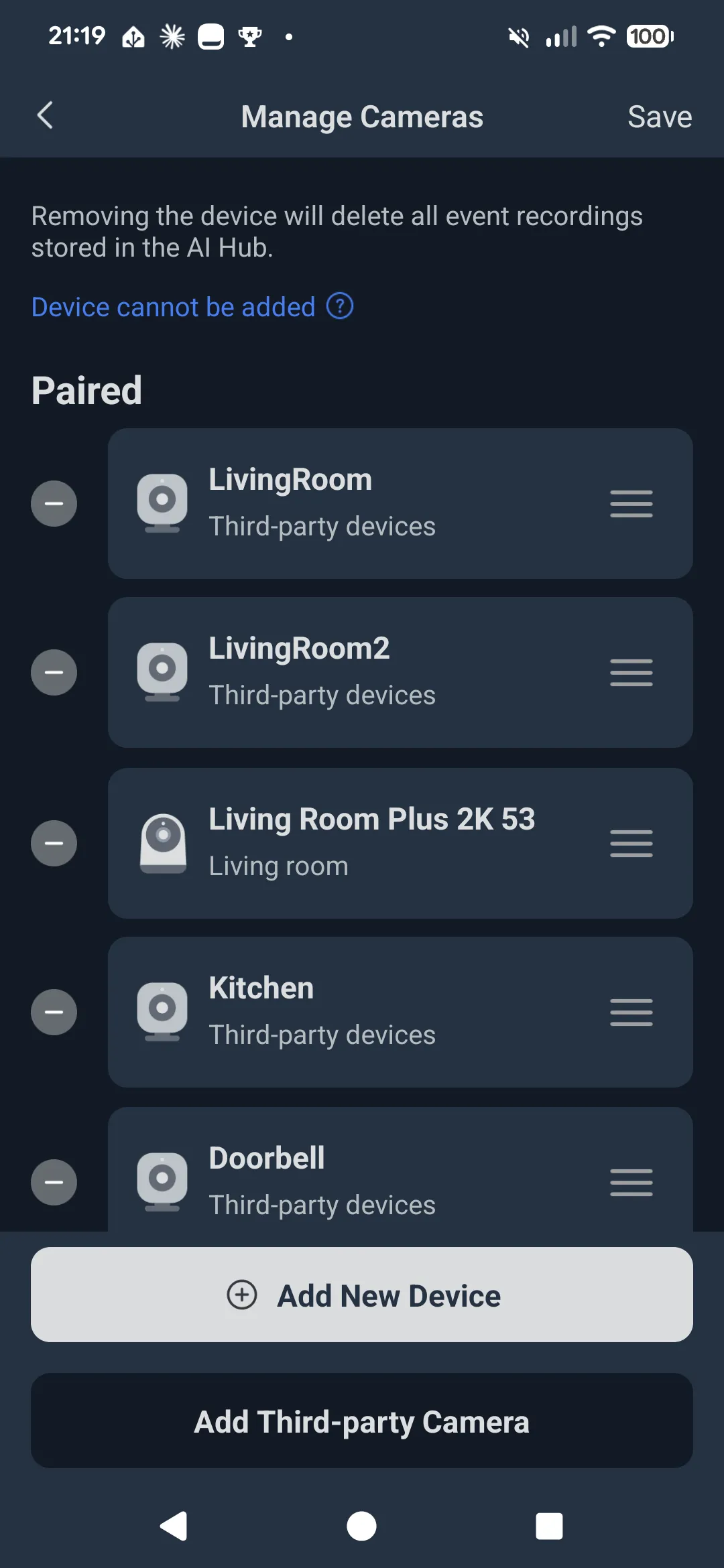
🚀 Setup and interface
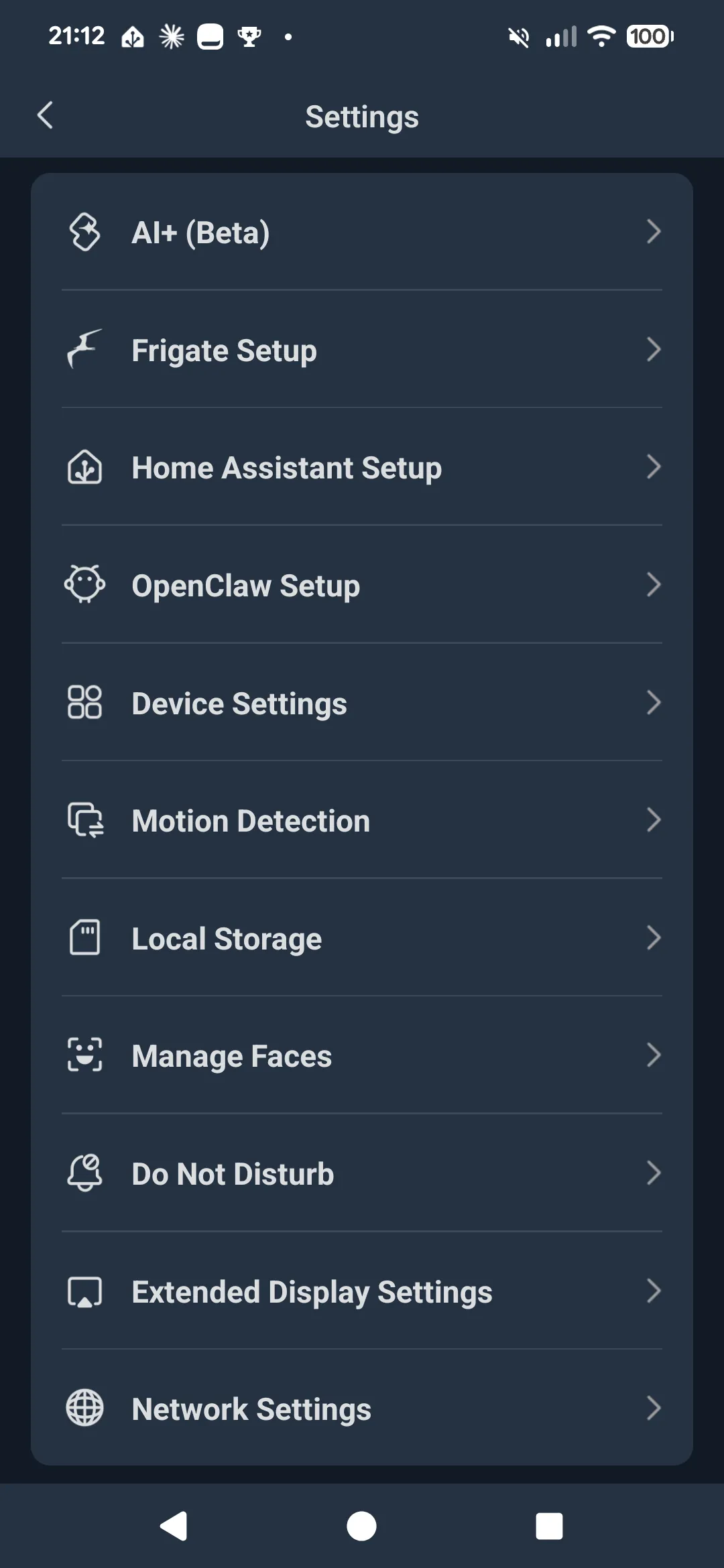
Section titled “🚀 Setup and interface”On the AI Hub, Frigate comes pre-installed. Open the SwitchBot app, navigate to your AI Hub → Click on the icon to add a camera, add your cameras, done. The Frigate web interface is available on your local network (you can find the address in your AI Hub → Settings → Frigate setup, first link is the http version, the second https version). SwitchBot cameras appear automatically; third-party RTSP cameras are added manually with their stream URL.
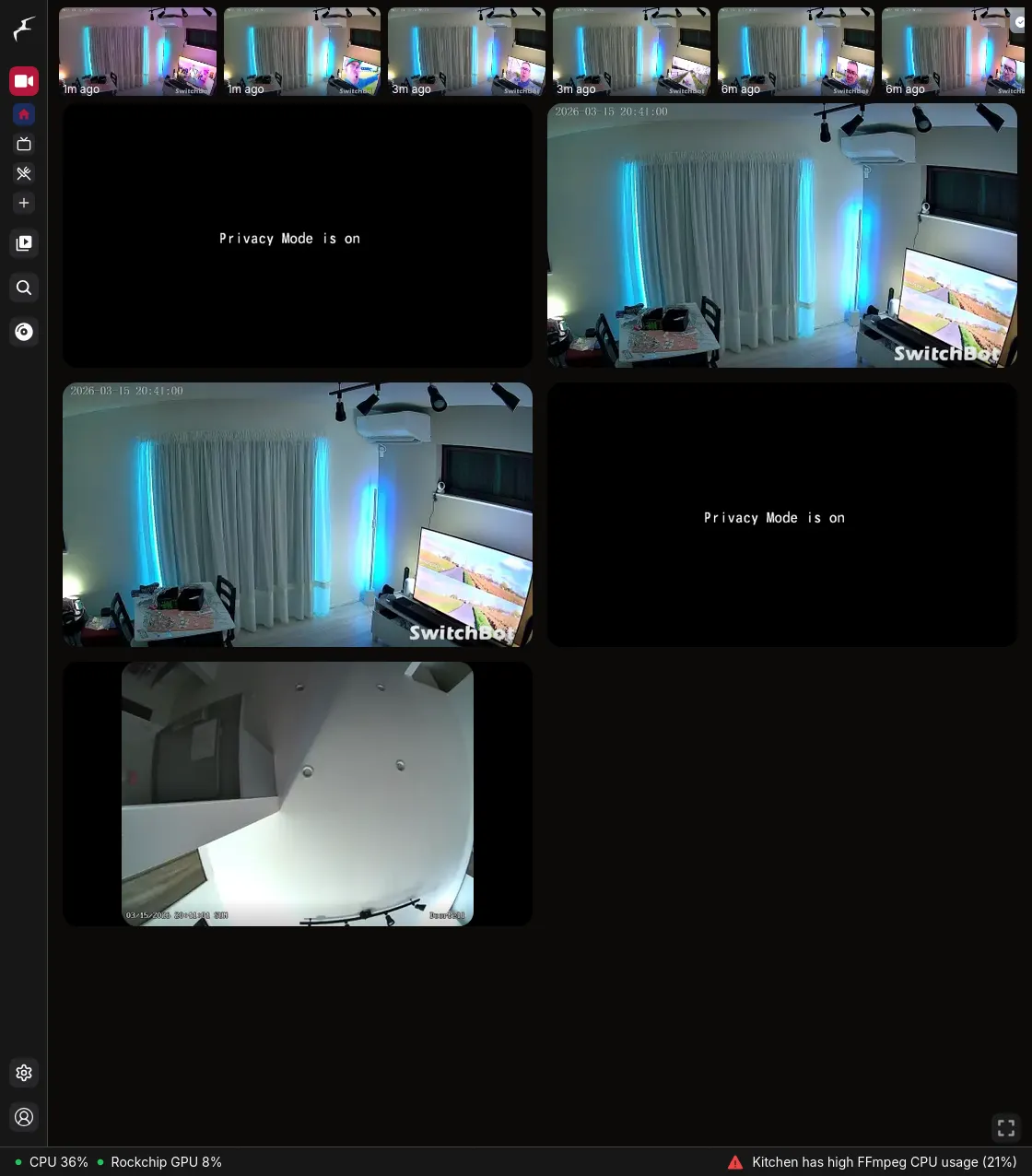
The interface is the standard Frigate UI: live multi-camera view, event timeline, detection clips, configurable detection zones, and face recognition enrollment. All local, no subscription required for any of this.
I tested the AI Hub with 4 cameras (2 times the living room, once added by Switchbot natively, the other one as an external stream) — the same number I run on my self-hosted setup — and compared the configuration side by side with my own Frigate instance. It holds up well. With 4 cameras I could not come close to finding any limits, and the performance was comparable to my self-hosted version running with the Coral TPU.
✅ What the default configuration includes
Section titled “✅ What the default configuration includes”The NPU is already configured for hardware-accelerated detection out of the box. On a self-hosted setup you spend real time figuring this out. Here it just works.
⚠️ What it does not include
Section titled “⚠️ What it does not include”go2rtc is not configured by default for your cameras. This means:
- Live streams run at lower quality with more latency
- Two-way audio does not work out of the box
For users primarily using Frigate for event detection and clip review, this will be perfectly fine. For those who want low-latency live view and two-way audio through a doorbell camera, go2rtc configuration for your specific camera models is required — the same challenge you face in any self-hosted setup. Some cameras play nicely, others (looking at you, Tapo C200) require more patience.
| Self-hosted Frigate | SwitchBot AI Hub | |
|---|---|---|
| Hardware required | Separate server (mini PC, NAS…) | Hub only |
| Frigate installation | Manual | Pre-installed |
| Camera compatibility | Any RTSP/ONVIF | Any RTSP/ONVIF |
| Storage | Self-managed | microSD + up to 16TB HDD |
| Hardware acceleration | Manual (Coral TPU, GPU…) | Pre-configured NPU |
| go2rtc / stream optimization | Optional, full control | Optional, full control |
🌐 Remote access
Section titled “🌐 Remote access”Frigate is LAN-only by default — if you are outside your home, the Frigate interface is not reachable without additional setup.
Out of the box, the SwitchBot app lets you view your SwitchBot camera feeds remotely via SwitchBot’s cloud relay. For other brands, you need to rely on the app of your cameras. Handy for a quick check, but it is not the full Frigate experience and the feed passes through SwitchBot’s servers, and multiple apps.
For full remote access to Frigate, the approach I use is a dedicated Home Assistant OS instance on a separate machine, exposed via the Cloudflare Tunnel app . It works reliably — including behind MAP-E and v6Plus connections common with Japanese ISPs — and requires no inbound port configuration on your router. Through this setup you access your Frigate cameras through Home Assistant from anywhere, just like you would at home.
🤖 Part 4: Beyond Frigate — The VLM Layer
Section titled “🤖 Part 4: Beyond Frigate — The VLM Layer”Frigate handles detection and recording. The AI Hub adds a layer on top: a Vision Language Model (VLM).
Where Frigate outputs labels (“person”, “car”), a VLM understands scenes. Not just “person detected” but “a person is sitting on the sofa in a dimly lit room” — and that richer understanding can drive smarter automations. SwitchBot has built three camera roles around this:
- Security Manager — monitors for security events: intrusion, fence climbing, loitering
- Care Manager — monitors household activity: phone use, eating, lying down, reading
- Pet Manager — monitors pet activity: feeding, sleeping, playing
In practice, this layer requires a paid subscription after a one-month free trial and relies on cloud processing.
If you would rather not add another monthly bill — or if sending your camera footage to a cloud AI service gives you pause — there is an alternative worth knowing about: you can build something approaching this yourself using Home Assistant automations triggered by Frigate events, with your preferred AI service doing the scene analysis. Claude AI, OpenAI, Gemini, or a self-hosted model via Ollama can all work here. More effort to set up, more control over your data, no recurring cost beyond whatever AI service you choose. Your trade-off to make.
⚖️ Part 5: Honest Assessment
Section titled “⚖️ Part 5: Honest Assessment”What is free and local
Section titled “What is free and local”Frigate object detection, face recognition, event recording, local storage. All on-device, no subscription. This is the core and it is genuinely solid.
If you are starting from scratch
Section titled “If you are starting from scratch”The AI Hub is a compelling option. At ¥39,980 it is not cheap, but you are paying for a pre-configured Frigate setup that would take real time and effort to replicate yourself. Guided camera setup, pre-configured NPU, SwitchBot ecosystem gateway, and a containerized Home Assistant to experiment with — all in a single fanless box. If you want to go deeper and optimize go2rtc or build more complex automations, the door is open.
If you are already running Frigate
Section titled “If you are already running Frigate”The AI Hub does not add much on the camera side — your setup already does what Frigate does here. The potential arguments for it are:
- The pre-configured NPU if your detection is currently CPU-bound
- Future SwitchBot local API access as it matures — though be cautious about buying hardware today based on features that are still in progress; buy based on what it does right now
- For SwitchBot device integration, the native Home Assistant integration already covers most products well — IR devices being the notable exception where local support is still catching up, you might want to use Matter for this
- Experimenting with OpenClaw, the AI agent framework that runs on the hub — though you can also self-host it on your own machine
🏁 Conclusion
Section titled “🏁 Conclusion”Seven notifications at a ryokan. Car headlights, a robot vacuum at 20:00, and a lot of false alarms. The problem was never the camera hardware — it was a detection system that could not tell a person from a change in light.
Frigate solves that problem. The SwitchBot AI Hub makes Frigate accessible without the setup barrier: NPU pre-configured, Frigate pre-installed, local storage ready to go. At ¥39,980, a fair chunk of that price is the configuration work it saves you.
If you want to go further — tuning go2rtc, adding two-way audio, connecting everything to a full Home Assistant OS setup — all of that is still possible. The AI Hub is a solid starting point that does not box you in.